
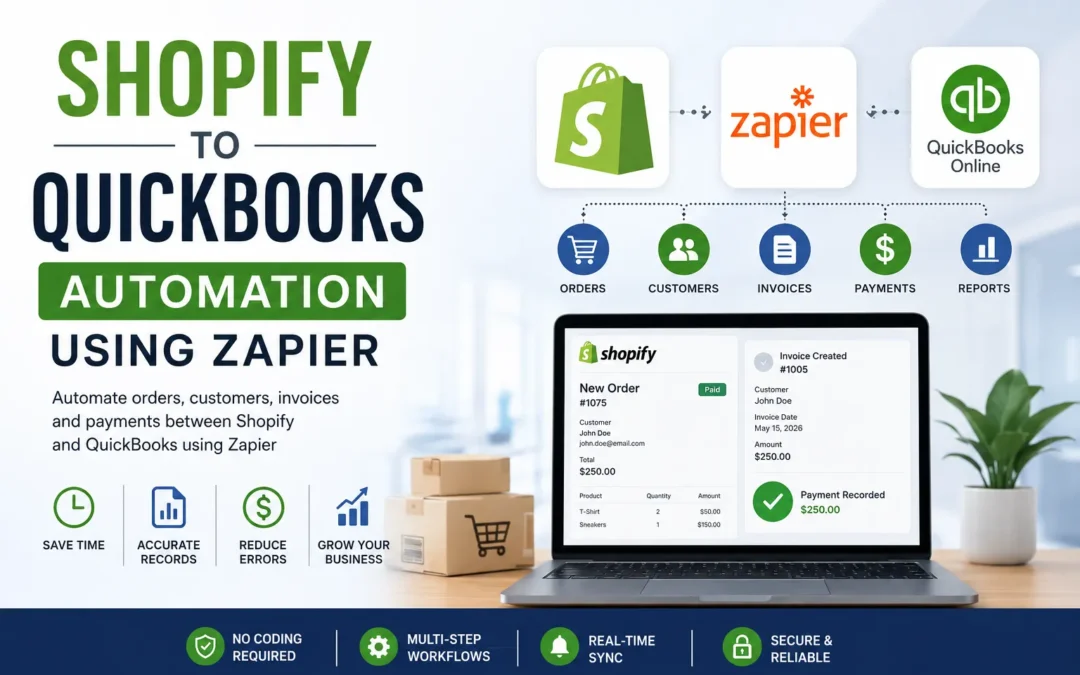
Running a Shopify store is exciting until the paperwork starts piling up. Every order needs to be recorded, invoices have to be created, customer details must stay updated, and payments need to be reflected correctly in your accounting software. As your sales grow, doing this manually becomes time consuming and increases the chances of costly bookkeeping mistakes.
That's where Zapier comes in.
By connecting Shopify with QuickBooks through Zapier, you can automatically transfer order details, create invoices, record payments, and keep your financial records up to date without writing a single line of code. Instead of spending hours every week on repetitive data entry, your team can focus on growing the business, improving customer experience, and increasing sales.
Whether you receive 20 orders a day or 2,000, automation ensures every transaction is processed consistently and accurately.
In this guide, you'll learn how Shopify and QuickBooks work together with Zapier, the automations you can build, common mistakes to avoid, and best practices for creating reliable workflows.
Why Connect Shopify and QuickBooks?
Shopify is excellent for managing products, customers, and online sales. QuickBooks Online is designed to handle accounting, invoicing, taxes, and financial reporting.
Without automation, your team may need to:
- Copy order details manually
- Create invoices one by one
- Add new customers repeatedly
- Record payments manually
- Update spreadsheets for reporting
- Fix bookkeeping errors caused by duplicate entries
These tasks may only take a few minutes per order, but across hundreds of orders each month, they can consume many hours.
Automation removes these repetitive steps.
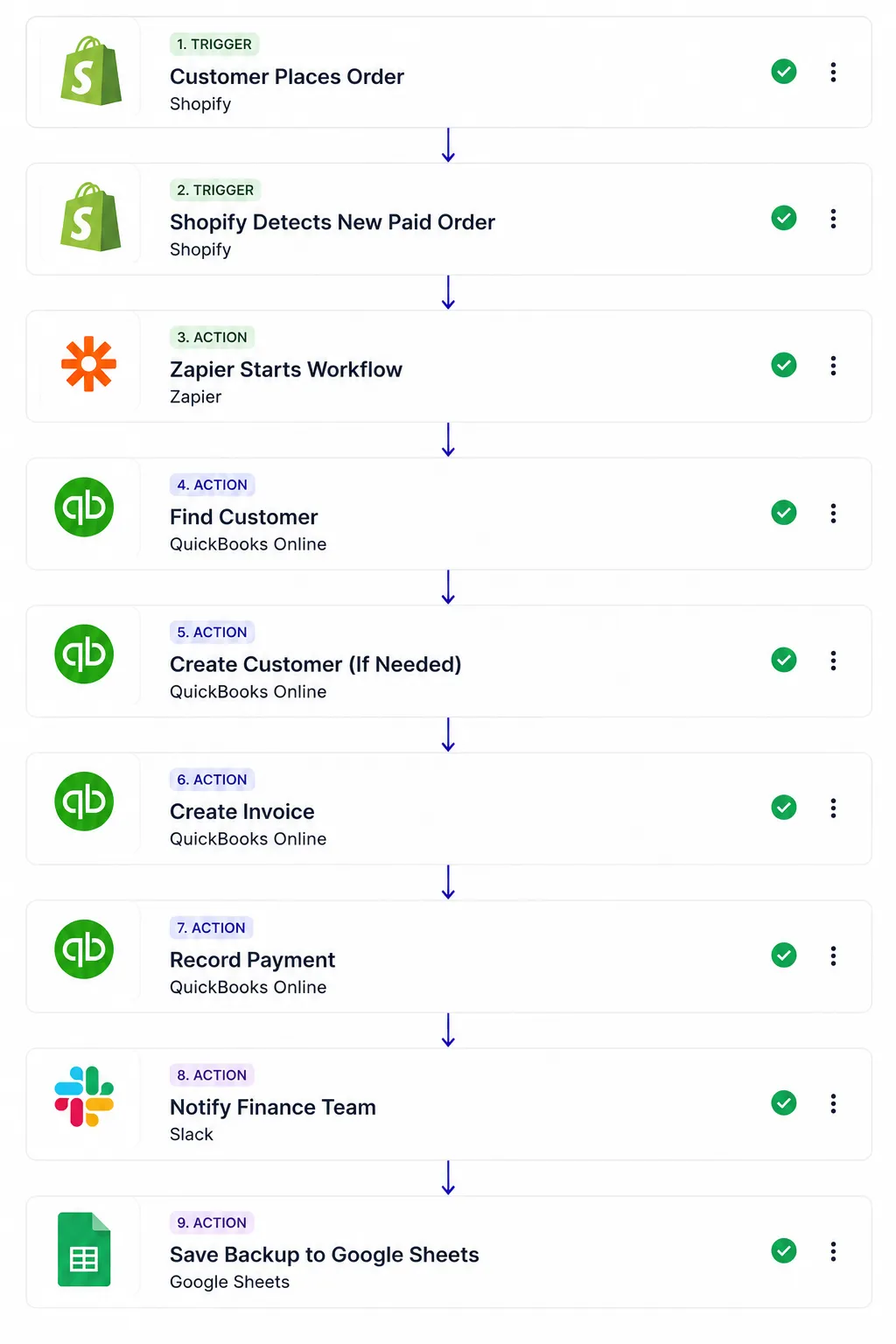
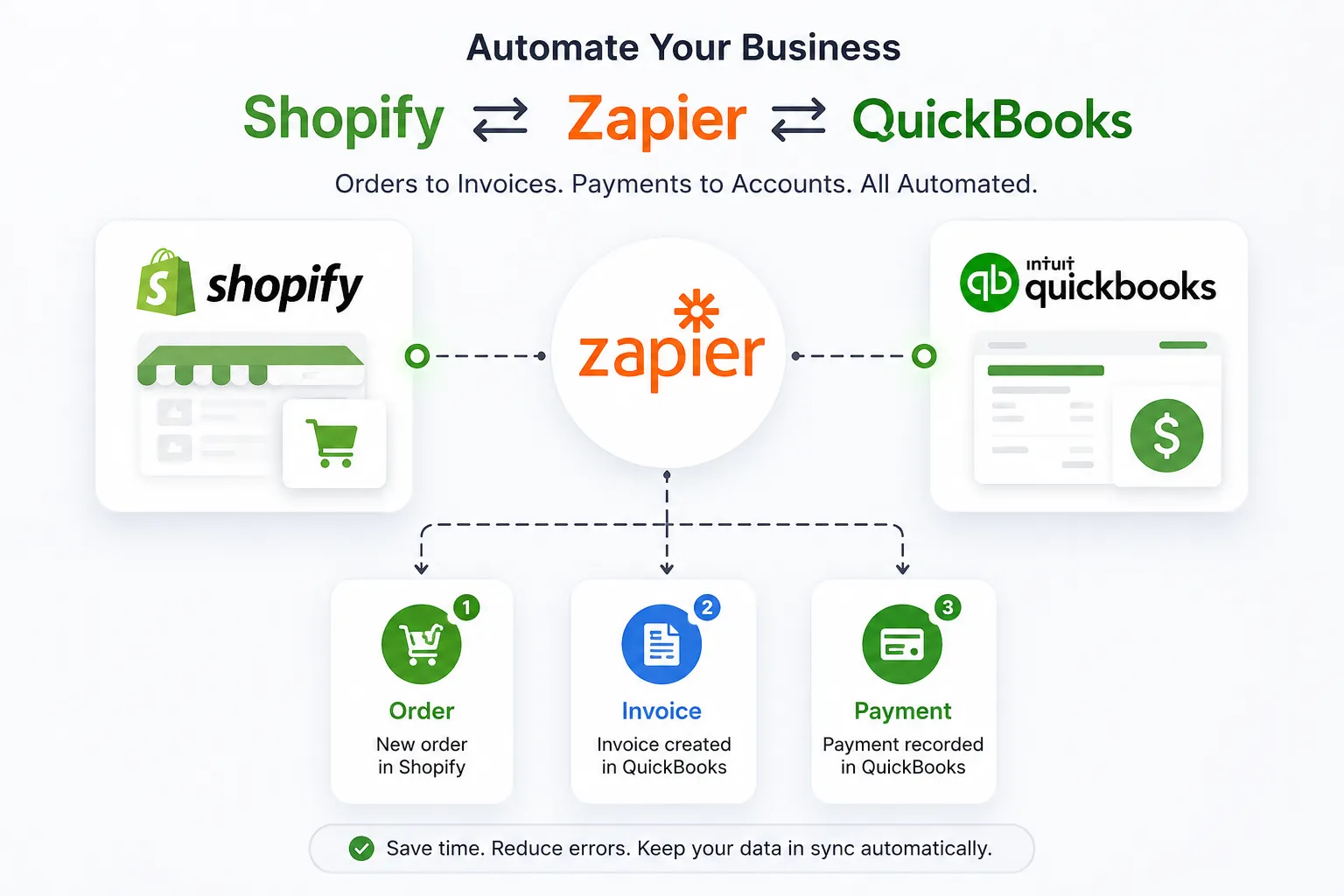
For example, when a customer places a paid order in Shopify, Zapier can instantly:
- Detect the new order
- Check whether the customer already exists in QuickBooks
- Create the customer if necessary
- Generate an invoice
- Record the payment
- Notify your finance team in Slack
- Save a backup of the order in Google Sheets
All of this happens automatically within seconds.
What Is Shopify to QuickBooks Automation?
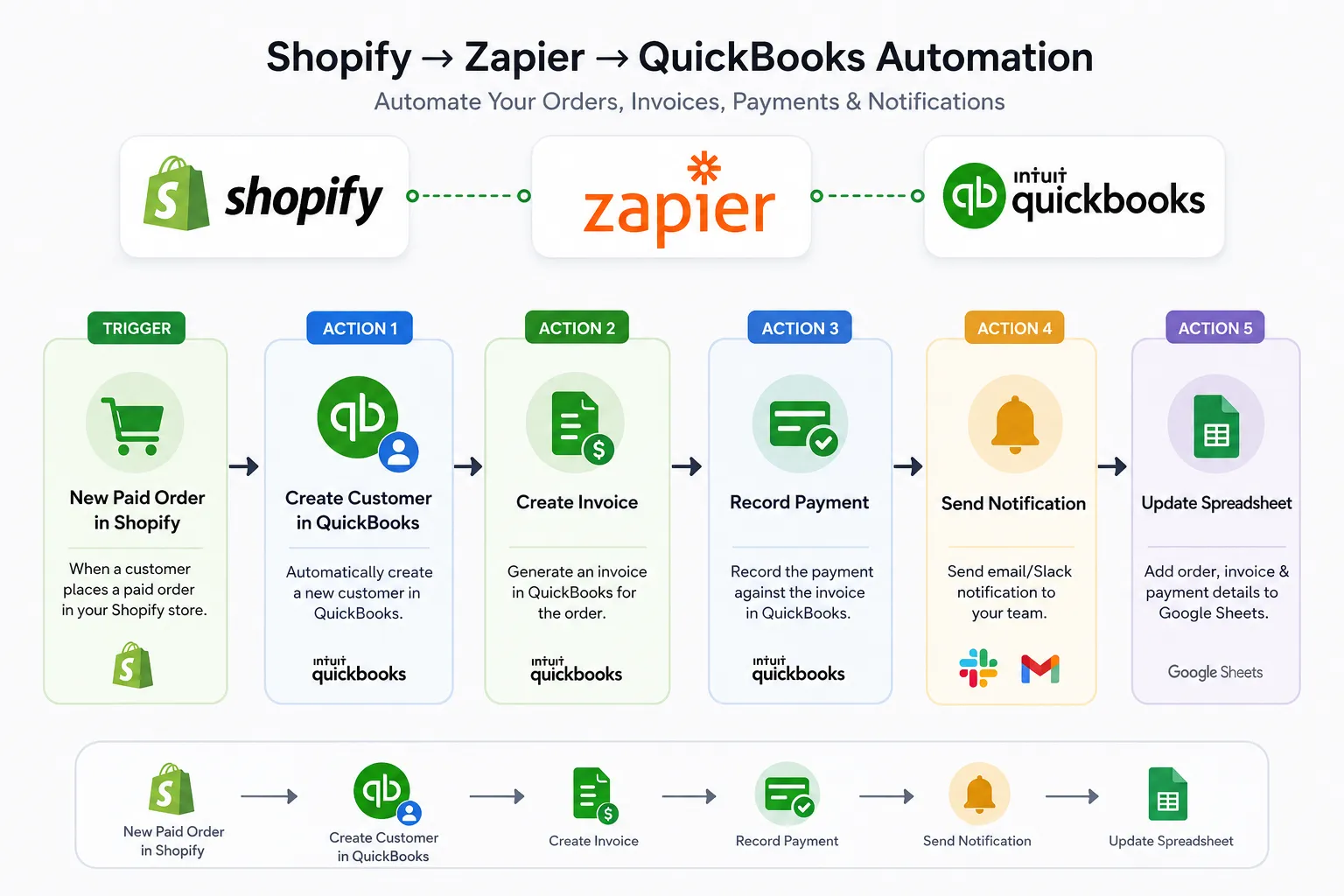
Shopify to QuickBooks automation is the process of automatically sending sales data from your Shopify store into QuickBooks Online using Zapier.
Instead of entering information manually, Zapier watches for events inside Shopify (called Triggers) and performs one or more actions inside QuickBooks.
For example:
Trigger:
- New Paid Order in Shopify
Actions:
- Create Customer in QuickBooks
- Create Invoice
- Record Payment
- Send Notification
- Update Spreadsheet
This type of automation is known as a Zap.
A single Zap can include multiple actions, filters, delays, conditional logic, and notifications, making it suitable for businesses of all sizes.
Benefits of Shopify and QuickBooks Automation
1. Save Hours Every Week
Many businesses spend several hours each week updating accounting records manually. Automation reduces this work dramatically, especially during busy sales periods.
2. Reduce Human Errors
Manual data entry often leads to duplicate customers, missing invoices, incorrect totals, or payment mismatches. Automated workflows help keep records consistent.
3. Faster Bookkeeping
Invoices and payments can be created within seconds of an order being placed, making your financial records more current and reducing end-of-month workload.
4. Better Financial Visibility
When Shopify sales sync automatically with QuickBooks, reports are updated more frequently. This helps business owners monitor revenue, taxes, and cash flow without waiting for manual updates.
5. Improve Team Productivity
Your finance team no longer needs to copy data between systems. They can spend more time reviewing reports, managing expenses, or planning business growth.
6. Scale Without Hiring
As order volume increases, automation handles repetitive work without requiring additional administrative staff.
How Zapier Connects Shopify and QuickBooks
Zapier acts as the bridge between the two platforms.
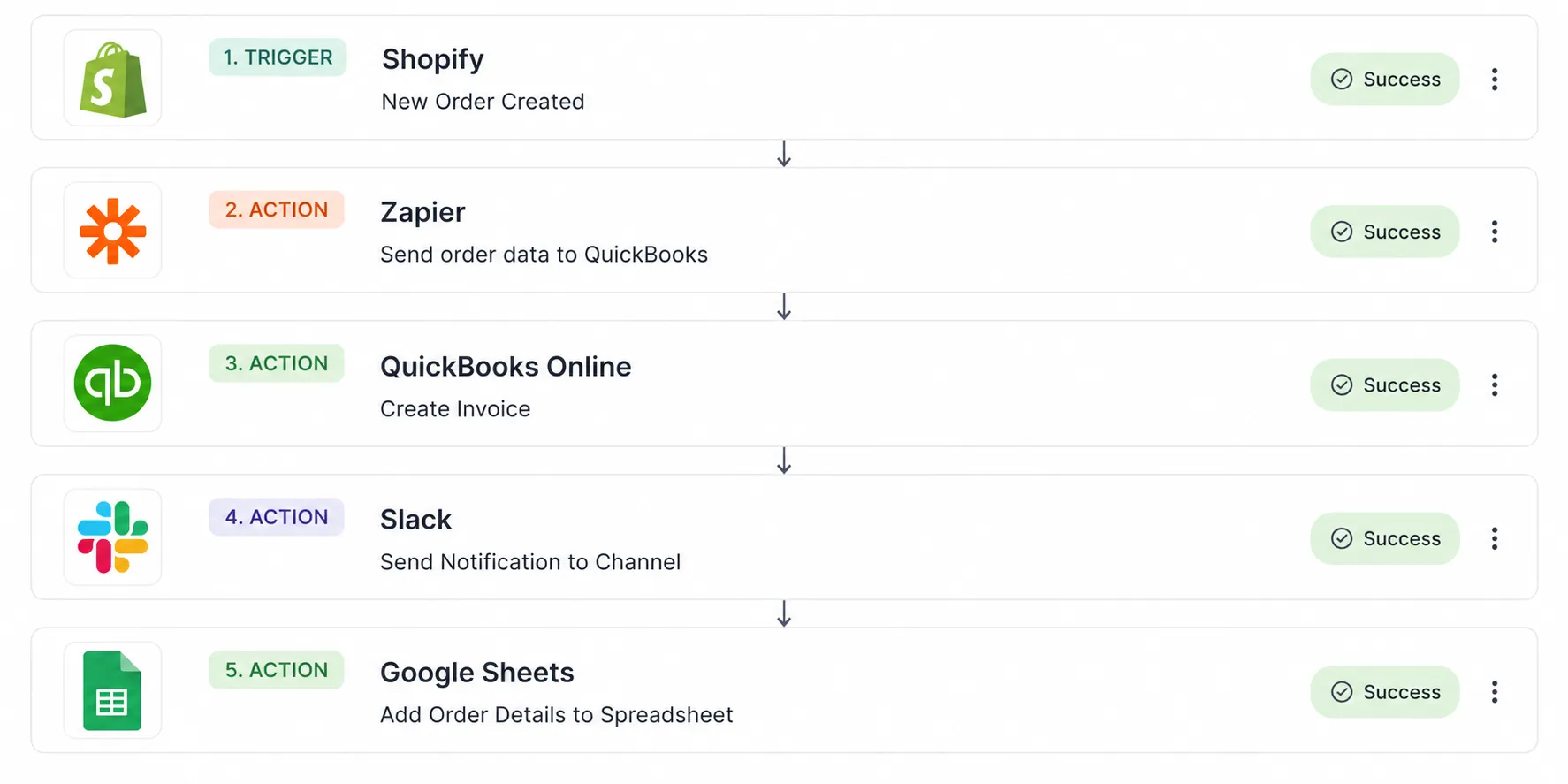
The workflow typically looks like this:
Benefits of Shopify and QuickBooks Automation
1. Save Hours Every Week
Many businesses spend several hours each week updating accounting records manually. Automation reduces this work dramatically, especially during busy sales periods.
2. Reduce Human Errors
Manual data entry often leads to duplicate customers, missing invoices, incorrect totals, or payment mismatches. Automated workflows help keep records consistent.
3. Faster Bookkeeping
Invoices and payments can be created within seconds of an order being placed, making your financial records more current and reducing end-of-month workload.
4. Better Financial Visibility
When Shopify sales sync automatically with QuickBooks, reports are updated more frequently. This helps business owners monitor revenue, taxes, and cash flow without waiting for manual updates.
5. Improve Team Productivity
Your finance team no longer needs to copy data between systems. They can spend more time reviewing reports, managing expenses, or planning business growth.
6. Scale Without Hiring
As order volume increases, automation handles repetitive work without requiring additional administrative staff.
How Zapier Connects Shopify and QuickBooks
Zapier acts as the bridge between the two platforms.
The workflow typically looks like this:
Each step runs automatically. If a customer already exists, Zapier can skip creating a new one. If the order is unpaid, filters can prevent invoice creation until payment is received.
This flexibility allows businesses to build workflows that match their accounting process instead of changing their process to fit the software.
Who Should Use This Automation?
Shopify and QuickBooks automation is useful for:
- Shopify store owners
- D2C brands
- Fashion and apparel businesses
- Electronics stores
- Beauty product sellers
- Home décor stores
- Subscription businesses
- Wholesale suppliers
- Digital product sellers
- Agencies managing multiple Shopify stores
Whether you process a few orders per day or thousands per month, automating accounting reduces repetitive work and helps maintain accurate financial records.
Step 1: What You'll Need Before You Start
Before building your automation, make sure you have the following accounts ready:
- A Shopify store with admin access
- A QuickBooks Online account
- A Zapier account
- Permission to connect third-party apps
- Sample order data in Shopify for testing
If you're setting this up for a client, ensure you have access to all three platforms before creating the Zap.
Step 2: Connect Shopify to Zapier
Log in to Zapier and click Create Zap.
Choose Shopify as your trigger app.
Zapier will ask you to connect your Shopify store. After logging in, authorize Zapier to access your store data.
Once connected, select the event that should trigger the workflow.
Popular Shopify triggers include:
- New Paid Order
- New Order
- New Customer
- Updated Order
- Cancelled Order
- New Refund
For accounting, New Paid Order is usually the best choice because it ensures only completed purchases are sent to QuickBooks.
After selecting the trigger, test it to confirm Zapier can retrieve a recent Shopify order.
Step 3: Connect QuickBooks Online
Next, choose QuickBooks Online as the action app.
Sign in with your QuickBooks account and grant Zapier permission to access your company data.
Depending on your workflow, you can choose actions such as:
- Create Customer
- Find Customer
- Create Invoice
- Create Sales Receipt
- Record Payment
- Create Estimate
- Create Expense
- Update Customer
For most Shopify stores, the workflow starts with Find Customer to avoid creating duplicate customer records.
Step 4: Build the Automation Workflow
A recommended workflow looks like this:
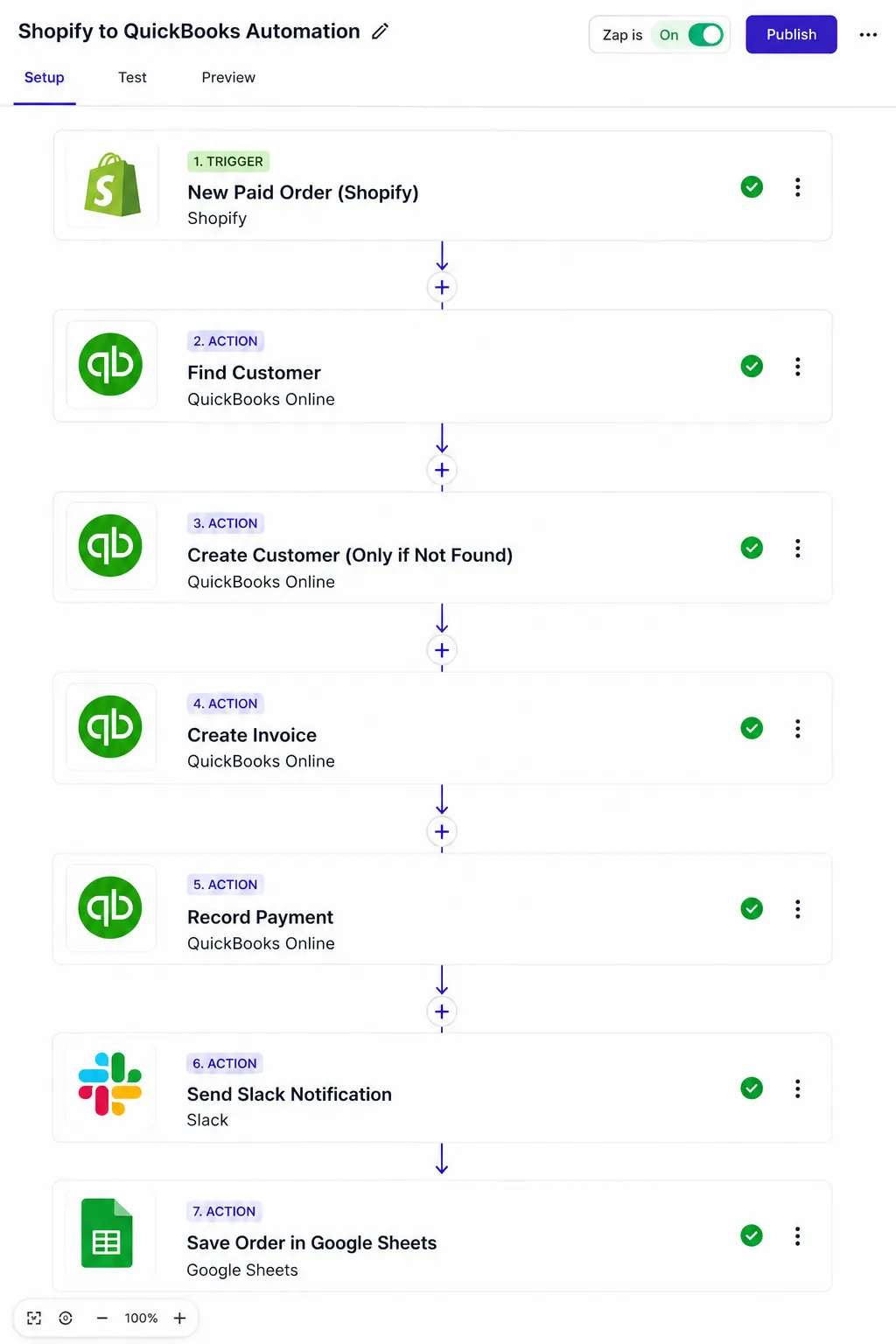
Each action passes information to the next step automatically.
Mapping Your Data
Zapier allows you to map Shopify fields directly into QuickBooks.
Typical mappings include:
| Shopify Field | QuickBooks Field |
|---|---|
| Customer Name | Customer Name |
| Email Address | |
| Order Number | Invoice Number |
| Order Date | Invoice Date |
| Product Name | Line Item |
| Quantity | Quantity |
| Price | Amount |
| Shipping | Shipping Charge |
| Tax | Tax Amount |
| Total Paid | Payment Amount |
Correct field mapping ensures invoices are created accurately.
Popular Shopify + QuickBooks Automations
1. New Paid Order → Create Invoice
Every time a customer completes payment, Zapier creates an invoice automatically.
Perfect for businesses that invoice every sale.
2. New Customer → Create Customer
When someone places their first order, Zapier creates a customer profile in QuickBooks.
No duplicate data entry required.
3. Paid Order → Record Payment
Once payment is confirmed in Shopify, Zapier marks the invoice as paid in QuickBooks.
This keeps accounts receivable accurate.
4. Refund → Create Credit Memo
If a customer receives a refund, Zapier can generate a credit memo or update the accounting records.
5. High-Value Order → Slack Notification
If an order exceeds a certain amount (for example, ₹50,000 or $500), Zapier can notify your finance or sales team instantly.
6. Order → Google Sheets Backup
Maintain a secondary record of every Shopify order for reporting, dashboards, or audits.
7. Order → Gmail Notification
Automatically email your accountant or operations team whenever a new order is received.
Advanced Multi-Step Workflow
Growing businesses often need more than a simple invoice creation.
Here's an advanced workflow:
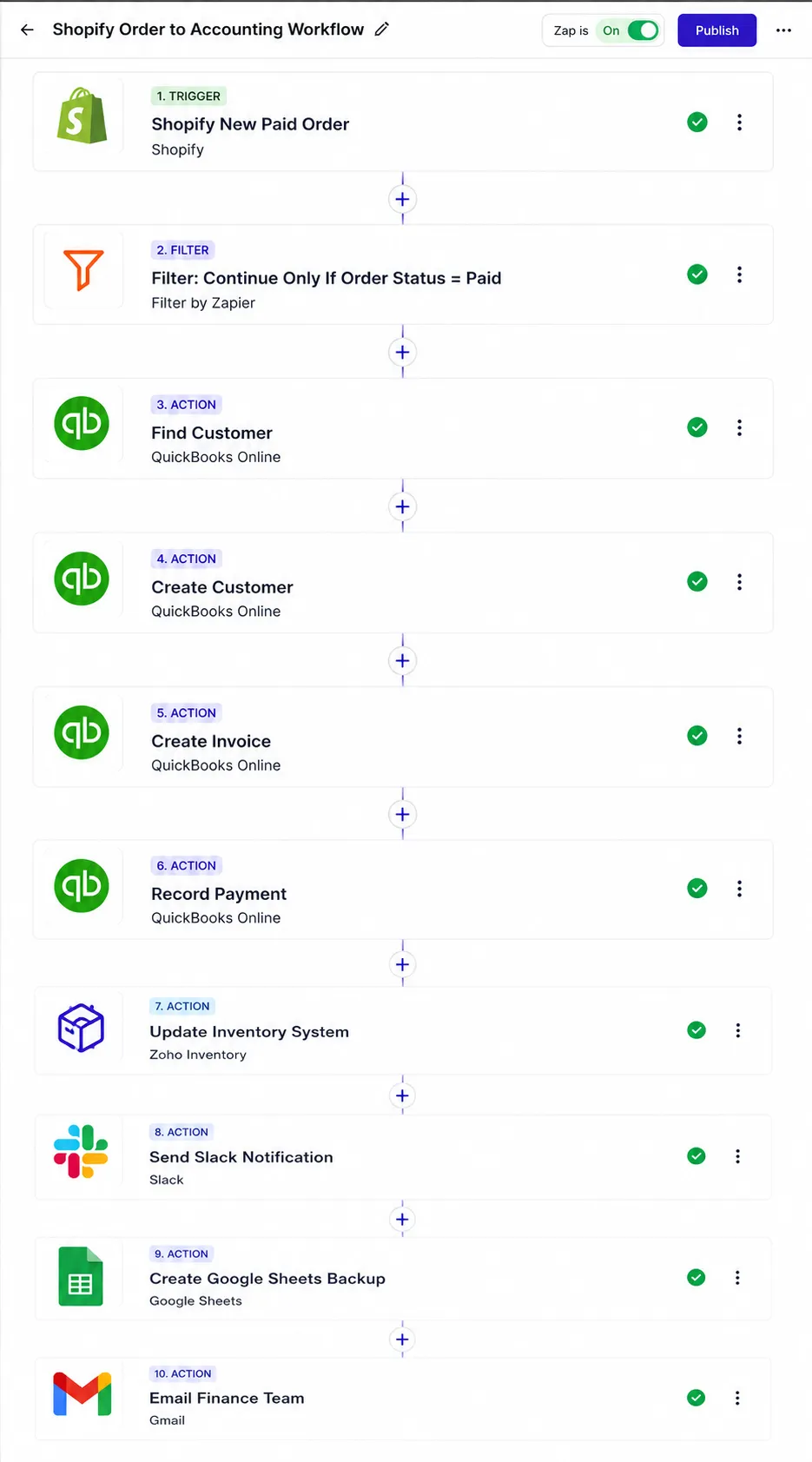
This workflow removes manual work across multiple departments while ensuring every order is processed consistently.
Common Problems and How to Fix Them
Duplicate Customers
This happens when Zapier creates a new customer every time an order arrives.
Solution:
Use the Find Customer action before Create Customer.
Incorrect Tax Values
Different tax settings between Shopify and QuickBooks can lead to mismatched totals.
Solution:
Verify tax codes and ensure both platforms use the same tax configuration.
Currency Issues
Businesses selling internationally may process orders in multiple currencies.
Solution:
Enable multi-currency in QuickBooks and map the order currency correctly.
Product Mapping Errors
If product names differ between Shopify and QuickBooks, line items may not sync as expected.
Solution:
Use consistent SKUs across both platforms whenever possible.
Delayed Workflows
Some Zapier plans check for new data at scheduled intervals rather than instantly.
Solution:
Choose a plan with faster update intervals if real-time syncing is important.
Best Practices for Reliable Automation
To keep your workflows running smoothly:
- Test every Zap before turning it on.
- Start with one workflow and expand gradually.
- Use Filters to avoid processing unpaid orders.
- Add error notifications so failed tasks are noticed quickly.
- Review Zap History regularly.
- Use Formatter to clean names, phone numbers, or dates.
- Handle refunds in a separate Zap.
- Document your workflows for future maintenance.
- Review QuickBooks reports periodically to confirm records match Shopify sales.
Following these practices helps reduce errors and makes troubleshooting easier.
Why Businesses Choose Zapier
Zapier is popular because it:
- Requires no coding skills
- Connects thousands of business applications
- Supports multi-step workflows
- Includes filters, delays, and conditional logic
- Saves time by eliminating repetitive tasks
- Scales as your business grows
For many Shopify businesses, it offers a practical way to automate accounting without investing in custom software.
Zapier vs Native Shopify–QuickBooks Integration
Many businesses wonder whether they should use Zapier or rely on a native Shopify–QuickBooks integration. The answer depends on your business needs.
| Feature | Zapier | Native Integration |
|---|---|---|
| No-code setup | ✅ | ✅ |
| Multi-step workflows | ✅ | ❌ |
| Conditional logic | ✅ | Limited |
| Connect Slack, Gmail, Google Sheets | ✅ | ❌ |
| AI & CRM integrations | ✅ | ❌ |
| Custom business workflows | ✅ | Limited |
| Supports 7,000+ apps | ✅ | ❌ |
| Easy to expand later | ✅ | Limited |
If your only goal is to sync orders with QuickBooks, a native integration may be enough. However, if you also want to notify your team, update spreadsheets, create CRM records, or automate customer communication, Zapier offers much greater flexibility.
Real-World Automation Examples
Example 1: Daily Order Accounting
Every paid Shopify order automatically:
- Creates a customer (if needed)
- Generates an invoice
- Records the payment
- Updates sales reports
Result: No manual bookkeeping for daily sales.
Example 2: Finance Team Notification
Whenever an order above ₹1,00,000 is placed:
- Invoice is created in QuickBooks
- Slack message is sent to the finance team
- Email notification is sent to the manager
Result: High-value orders receive immediate attention.
Example 3: Refund Processing
When a refund is issued in Shopify:
- Create a credit memo in QuickBooks
- Update Google Sheets
- Notify the accounting team
Result: Refunds are tracked accurately without manual intervention.
Example 4: Customer Welcome Workflow
After a customer's first purchase:
- Add customer to QuickBooks
- Add customer to your CRM
- Send a welcome email
- Notify the sales team
- Create a follow-up task
Result: Accounting and customer engagement stay in sync.
Why Choose Jaseir for Zapier Automation?
At Jaseir, we don't just connect apps—we design automation workflows that fit the way your business operates.
Our Zapier automation services include:
- Shopify and QuickBooks integrations
- CRM automation (HubSpot, Salesforce, Zoho, Pipedrive)
- Marketing automation
- AI-powered workflows
- Multi-step Zap development
- API integrations
- Error handling and workflow optimization
- Ongoing maintenance and support
Whether you're a small online store or a growing eCommerce brand, we build reliable automations that save time, reduce manual work, and improve business efficiency.
Frequently Asked Questions
1. Can Zapier connect Shopify and QuickBooks?
Yes. Zapier allows you to connect Shopify with QuickBooks Online and automate tasks such as creating customers, invoices, sales receipts, and payment records.
2. Do I need coding knowledge?
No. Zapier is a no-code automation platform, making it accessible for business owners, marketers, and accountants without programming experience.
3. Can I sync only paid orders?
Yes. You can use the New Paid Order trigger or add filters so only completed and paid orders are sent to QuickBooks.
4. Can Zapier create invoices automatically?
Yes. Every qualifying Shopify order can automatically generate an invoice in QuickBooks with customer and product details.
5. What happens if a Zap fails?
Zapier keeps a task history where you can review failed tasks, identify the cause, and replay them after resolving the issue.
6. Can refunds be synced to QuickBooks?
Yes. You can create a separate workflow that records refunds or creates credit memos in QuickBooks whenever a Shopify refund occurs.
7. Does this work with QuickBooks Online?
Yes. Zapier supports QuickBooks Online. Compatibility with QuickBooks Desktop is more limited and may require additional tools.
8. Can I notify my team when an order is placed?
Absolutely. Zapier can send notifications to Slack, Microsoft Teams, Gmail, or other communication platforms as part of the same workflow.
9. Is Zapier suitable for high-volume Shopify stores?
Yes, provided you choose a Zapier plan with enough task capacity and design efficient workflows. Large stores may also benefit from batching or custom API integrations for very high order volumes.
10. Can Jaseir build custom Zapier automations?
Yes. Our team creates tailored automation solutions that integrate Shopify, QuickBooks, CRMs, marketing platforms, AI tools, and other business applications based on your requirements.
Final Thoughts
Managing a successful Shopify store involves more than processing orders—it also requires accurate accounting and efficient operations. Manually transferring data between Shopify and QuickBooks can slow your team down and increase the risk of errors.
With Zapier, you can automate repetitive accounting tasks such as customer creation, invoice generation, payment recording, notifications, and reporting. The result is a faster, more reliable workflow that gives you more time to focus on growing your business.
Whether you're handling a handful of orders each day or managing a high-volume eCommerce store, the right automation can improve accuracy, reduce administrative work, and keep your financial records up to date.
Ready to Automate Your Shopify Store?
If you're looking for a custom Shopify to QuickBooks integration or need advanced Zapier workflows tailored to your business, Jaseir Technologies can help. We design scalable automation solutions that connect your eCommerce platform with accounting software, CRMs, marketing tools, and AI-powered applications helping you save time and operate more efficiently.


