
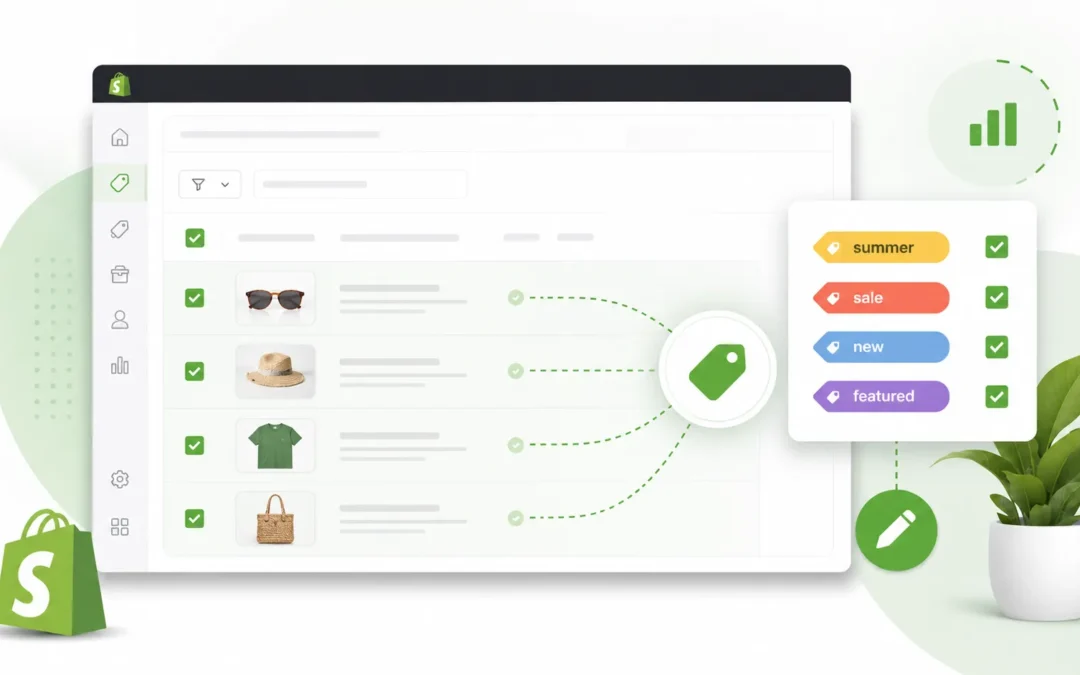
How to Bulk Edit Product Tags in Shopify: A Complete Guide
Managing a Shopify store can become surprisingly time-consuming as your product catalog grows.
Adding a tag to one product is easy. Adding the same tag to dozens or hundreds of products is a different story.
Whether you're preparing a seasonal promotion, reorganizing your catalog, creating collection rules, or cleaning up outdated tags, manually opening products one by one can quickly become repetitive.
The good news is that Shopify supports bulk actions for product tags, allowing merchants to add or remove tags from multiple products at once.
In this guide, we'll explain how to bulk edit product tags in Shopify, when bulk tagging is useful, how to keep your tag structure organized, and how a dedicated bulk tag manager can make the process even easier.
What Are Shopify Product Tags?
Shopify product tags are labels that you can attach to products to help organize and manage your catalog.
For example, an apparel store might use tags such as:
summerwintercottondenimnew-arrivalsalefeaturedclearance
Tags can help merchants group and find related products and can also be used with certain store organization and collection workflows. Shopify notes that product tags can be used to categorize products and help organize search results within the store.
However, product tags should not be confused with SEO keywords.
Shopify specifically states that product tags are not used by search engines for improving your store's search rankings.
Instead, think of tags primarily as an internal organization and product-management tool.
Why Bulk Editing Product Tags Matters
Imagine you have 500 products and want to add a summer-sale tag to 150 of them.
Editing every product individually means repeating the same process again and again.
This becomes even more frustrating when you need to:
- Add the same tag to many products
- Remove an outdated tag
- Reorganize products after a catalog update
- Prepare products for a seasonal promotion
- Group products for collection management
- Clean up inconsistent product tags
- Update products after importing a large catalog
Bulk editing turns a repetitive task into a much faster workflow.
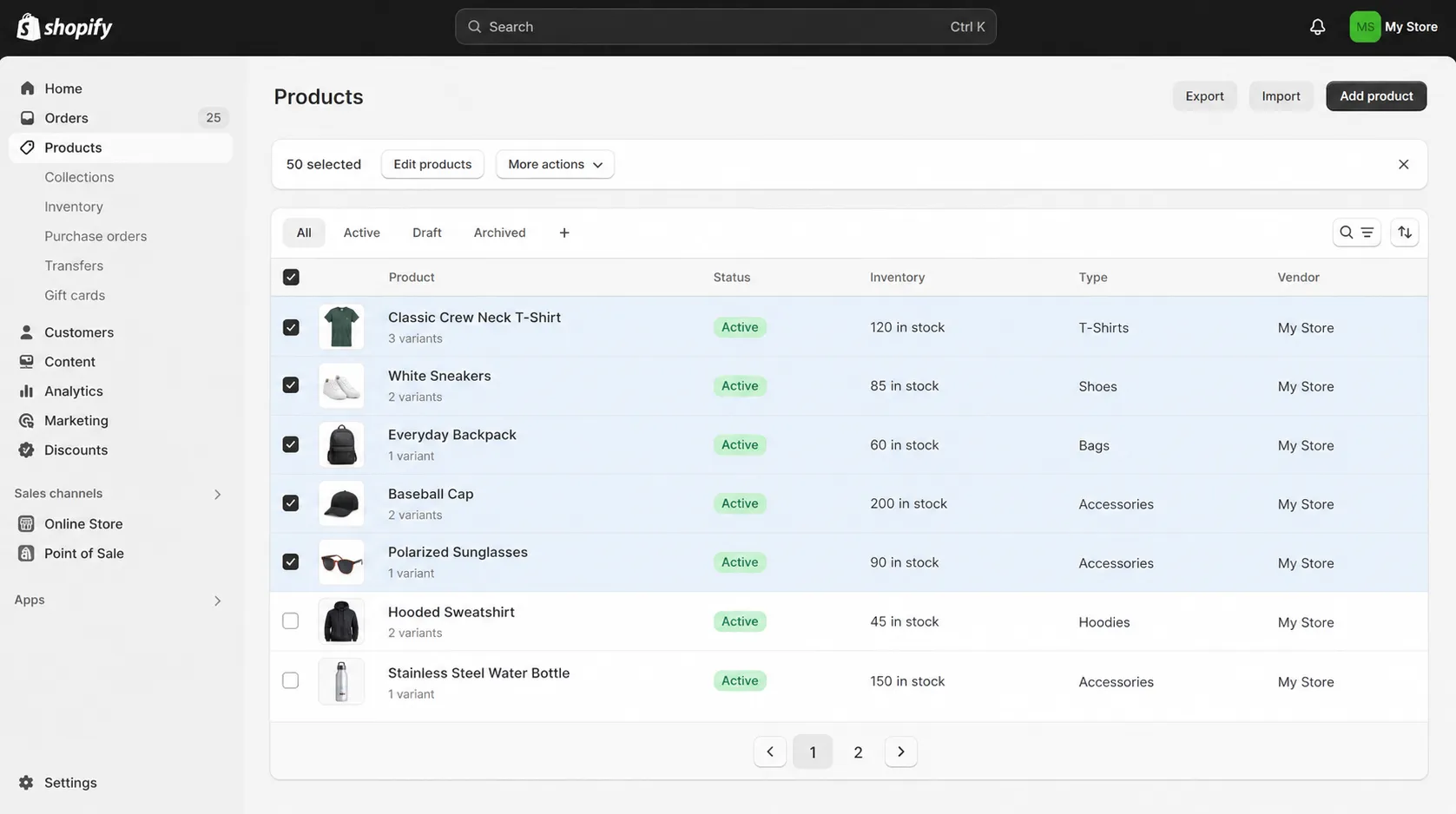
Shopify's bulk actions are designed to let merchants perform actions across multiple items at once.
How to Bulk Edit Product Tags in Shopify
Shopify provides a built-in way to add or remove tags from multiple products.
Step 1: Open Your Shopify Products
Log in to your Shopify admin and go to:
Products → Products
You'll see your product catalog.
Step 2: Select the Products
Use the checkboxes next to the products you want to update.
You can select multiple products that should receive the same tag.
For example, if you're preparing a summer promotion, you might select products that should receive:
summer-sale
Step 3: Choose the Bulk Action
After selecting the products, open the available bulk actions and choose the option to Add tags or Remove tags.
Shopify's current documentation confirms that product tags can be added or removed in bulk by selecting products and using the relevant bulk action.
Step 4: Add or Remove the Tag
Choose the tag you want to add or remove.
For example:
Add:
summer-sale
or
Remove:
old-collection
Step 5: Save the Changes
Save the bulk action.
The selected products will be updated with the tag.
What If You Need More Control Over Product Tagging?
Shopify's built-in bulk actions are useful for straightforward changes.
However, store owners may still want a simpler workflow when they regularly work with product tags.
For example, you may want to quickly:
- Search for a specific product
- Select multiple matching products
- Apply the same tag
- Remove a tag from several products
- Work with tags without opening individual product pages
This is where a dedicated Shopify bulk tag manager can be useful.
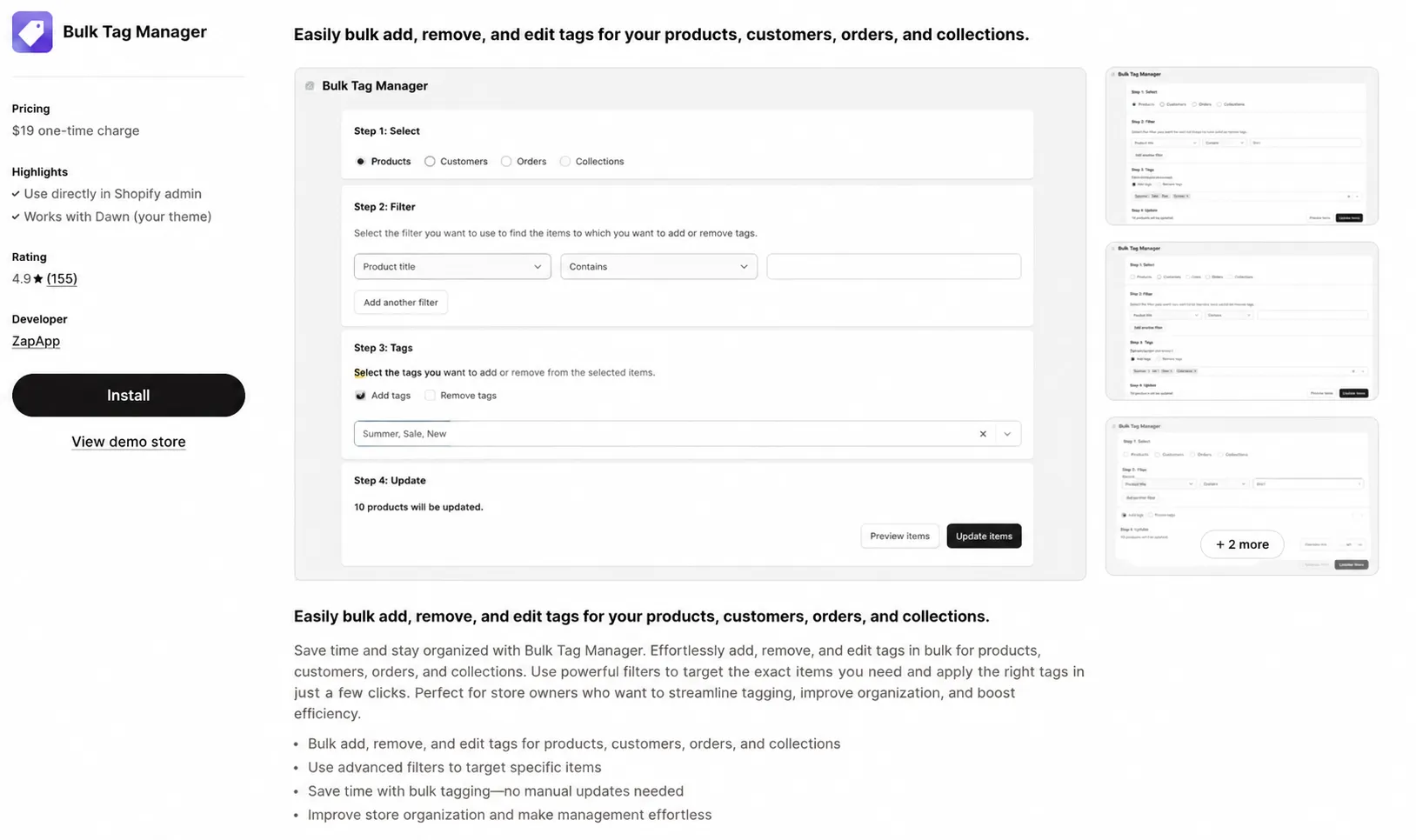
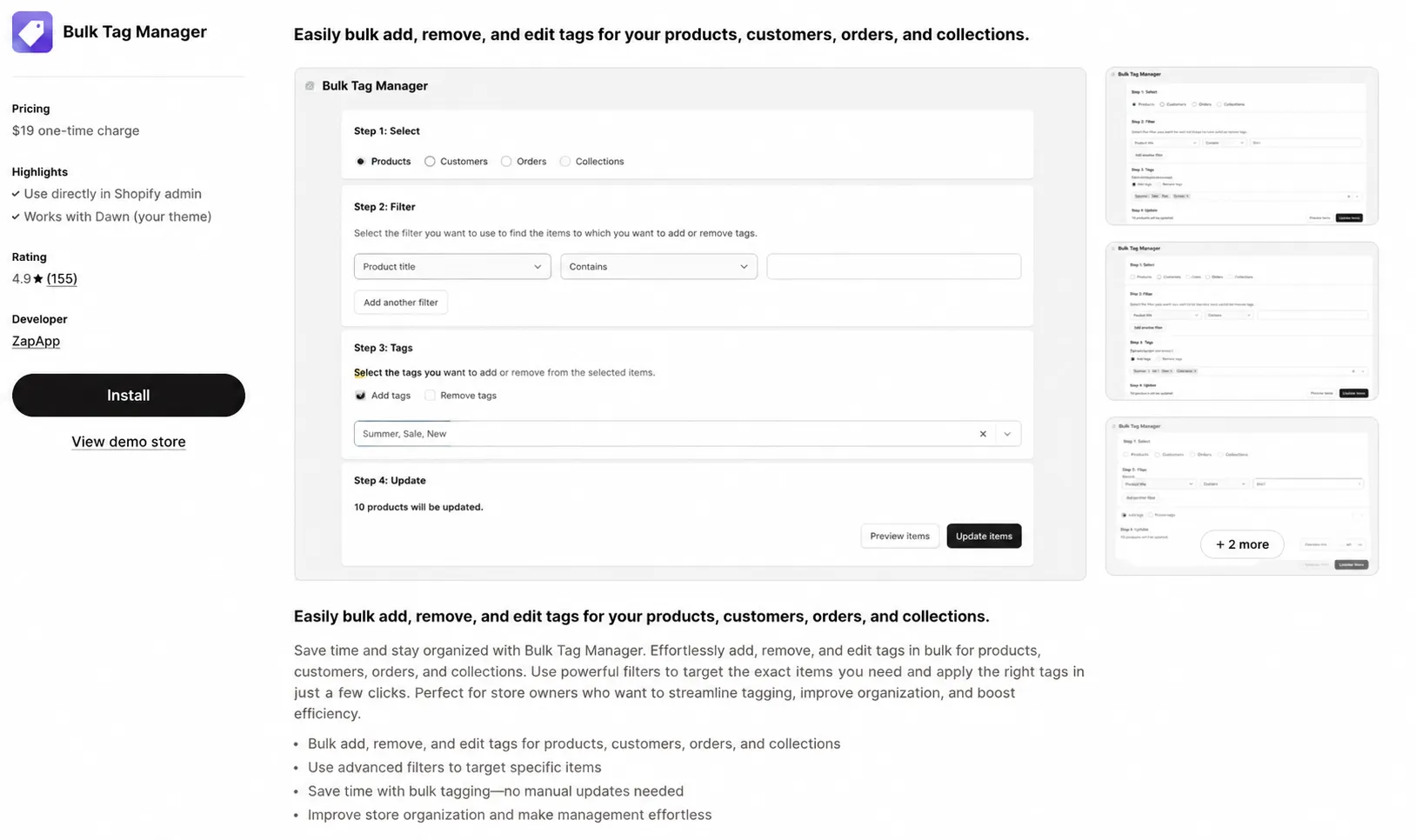
Meet Jaseir Bulk Tag Manager
Jaseir Bulk Tag Manager is a free Shopify app designed specifically for bulk product tagging.
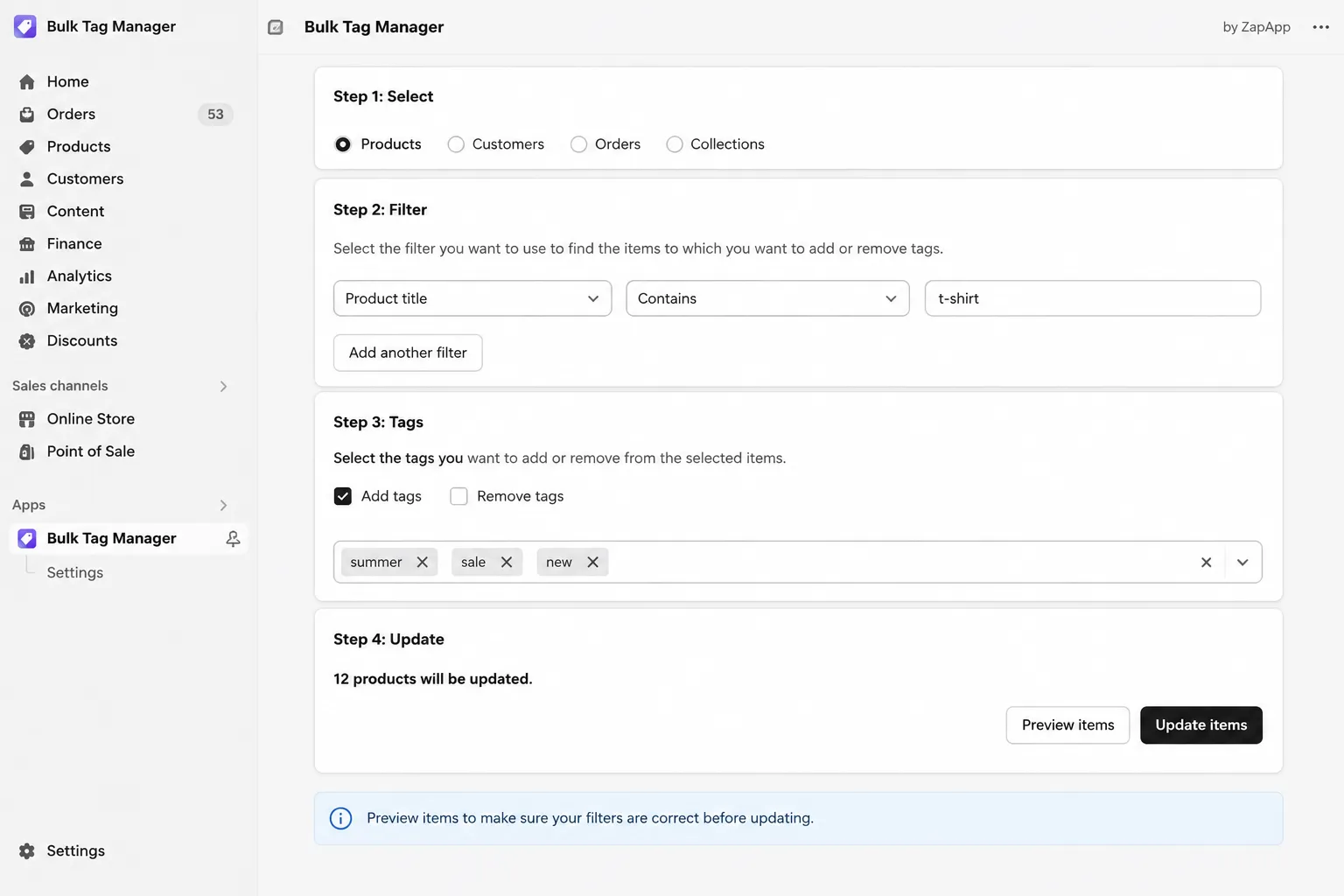
Instead of opening individual products and editing their tags one at a time, you can search your product catalog, select multiple products, and apply or remove tags from the selected products in one workflow.
The app currently provides three core capabilities:
- Search products by name
- Select multiple products
- Add or remove tags in bulk
It is available for free on the Shopify App Store.
Why Use a Dedicated Bulk Tag Manager?
The goal is simple: make repetitive product-tagging work faster.
For example, suppose your store has hundreds of products and you need to add:
featured
to 75 selected products.
Instead of opening products individually, you can search your catalog, select the products that need the tag, and apply the tag as a bulk action.
The same workflow can be used when you need to remove outdated tags.
Common Shopify Bulk Tagging Use Cases
There are many situations where bulk product tags can save time.
1. Seasonal Promotions
Running a summer, winter, holiday, or Black Friday promotion?
You can use tags such as:
summer-saleblack-fridayholiday-salewinter-collection
Once the promotion ends, you can remove outdated tags from the relevant products.
2. Product Collection Management
Tags can help you organize related products.
For example, a fashion store could use:
menwomenshirtsjeanscottonnew-arrival
Consistent tagging makes it easier to manage large catalogs.
Shopify also documents product tags as a way to group related products and use them in store organization workflows.
3. Cleaning Up Old Tags
Product catalogs often accumulate outdated tags.
You might have tags such as:
sale-2023summer-oldtemporaryold-products
Instead of removing these tags product by product, you can identify the relevant products and remove the outdated tags in bulk.
4. New Product Launches
Launching a new product range?
You might want to tag products with:
new-arrival
or:
new-collection
Applying the tag to multiple products at once makes catalog preparation faster.
5. Catalog Reorganization
Stores sometimes change their product organization as they grow.
You may decide to replace inconsistent tags such as:
mensmenMen's
with a consistent format such as:
mens
A bulk tagging workflow can make this type of catalog cleanup much easier.
Best Practices for Shopify Product Tags
Bulk tagging is powerful, but it works best when you have a clear tagging system.
Use Consistent Naming
Don't create several versions of the same tag.
For example, avoid using:
Summer Salesummer salesummer-saleSummer-Sale
Choose one naming convention and stick with it.
Shopify recommends using consistent capitalization and hyphen formatting for easier tag management.
Keep Tags Meaningful
Don't add tags simply because you can.
Every tag should have a purpose.
Good examples include:
summer
new-arrival
clearance
cotton
featured
Avoid Using Tags as an SEO Shortcut
Product tags are useful for catalog organization, but they are not an SEO ranking tactic.
Shopify explicitly states that tags aren't used by search engines to improve your store's search results.
For SEO, focus on product titles, descriptions, structured data, collection content, internal linking, and other appropriate optimization methods.
Review Before Making Large Changes
Bulk actions can save significant time, but you should still verify that you've selected the correct products before applying or removing a tag.
For large catalog changes, it is also a good idea to keep your tagging structure documented.
How Many Tags Can a Shopify Product Have?
Shopify currently allows up to 250 tags per product in standard product-tag functionality. Shopify also notes that Shopify Plus stores can have unlimited product tags, although only 250 display when bulk editing tags.
That means most stores don't need to worry about reaching the tag limit during normal catalog management.
The bigger challenge is usually maintaining a clean and consistent tagging system.
Shopify Bulk Tags vs Editing Products One by One
Here's the practical difference.
| Method | Best For |
|---|---|
| Edit products individually | One or two products |
| Shopify bulk actions | Straightforward bulk changes |
| CSV workflow | Larger catalog data operations |
| Bulk Tag Manager | Quickly searching, selecting, adding, or removing product tags |
If you're making a small change to one product, individual editing is perfectly fine.
If you're repeatedly managing tags across many products, a bulk workflow can save a lot of repetitive work.
How Jaseir Bulk Tag Manager Works
The workflow is intentionally simple:
Search products
↓
Select multiple products
↓
Choose a tag
↓
Add or remove the tag
↓
Done
The app is designed around this specific product-tagging workflow rather than trying to provide a large collection of unrelated store-management features.
That makes it particularly useful for merchants who frequently need to reorganize product tags.
Is Jaseir Bulk Tag Manager Free?
Yes.
Jaseir Bulk Tag Manager is currently listed as a free Shopify app.
You can view the app and install it from the Shopify App Store:
Install Jaseir Bulk Tag Manager →
Frequently Asked Questions
Can I add the same tag to multiple Shopify products?
Yes. Shopify supports adding tags to multiple products using bulk actions.
Can I remove a tag from multiple Shopify products?
Yes. Shopify supports bulk removal of product tags as well.
Can I search Shopify products before bulk tagging?
Yes. Jaseir Bulk Tag Manager lets you search your product catalog by product name before selecting products for a bulk tag action.
Are Shopify product tags good for SEO?
Product tags can help with organization and certain store-management workflows, but Shopify states that product tags are not used by search engines to improve your store's search rankings.
How many tags can I add to a Shopify product?
Shopify allows up to 250 tags per product under its standard product-tag limits.
Is there a free Shopify bulk tag app?
Yes. Jaseir Bulk Tag Manager is currently available as a free Shopify app.
Make Shopify Product Tagging Faster
Product tags are easy to manage when your catalog is small.
As your store grows, repetitive tag updates can become another time-consuming task.
Shopify already provides bulk actions for adding and removing tags, so merchants don't always need to edit products individually.
If you regularly search for products, select groups of products, and apply or remove tags, Jaseir Bulk Tag Manager provides a focused workflow for doing exactly that.
Instead of opening products one at a time, search, select, tag, and move on.
Try Jaseir Bulk Tag Manager
Free to use. Built for Shopify merchants who want faster product management.


